剛安裝完 Linux (CentOS/RHEL 7/8/9、Rocky、Alma、Fedora),網卡未激活、無 IP、無法上網。
# 1. 查看網卡名稱
nmcli device status
# 輸出示例:eth0  ethernet  disconnected  --

# 2. 創建連接配置 (靜態 IP)
nmcli con add type ethernet con-name eth0-static ifname eth0 \
    ipv4.method manual \
    ipv4.addresses 192.168.1.100/24 \
    ipv4.gateway 192.168.1.1 \
    ipv4.dns "1.1.1.1 8.8.8.8" \
    ipv4.dns-search example.com

# 3. 啟用連接
nmcli con up eth0-static

# 驗證
ip addr show eth0
ping -c 3 8.8.8.8nmtui
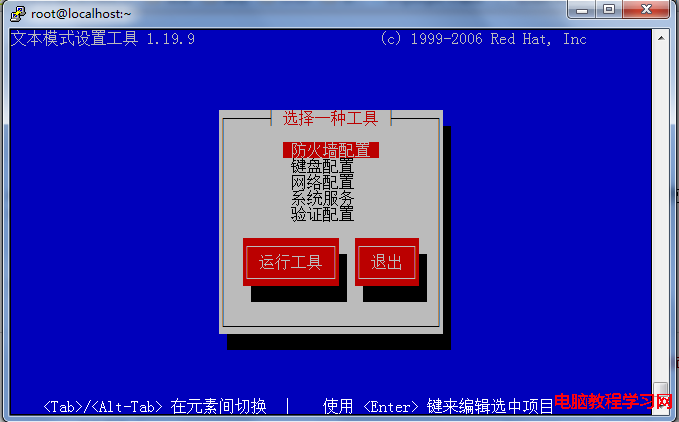
# 選擇 "Edit a connection" → Add → Ethernet → 填寫 Profile name、Device、IPv4 Configuration (Manual) → OK → Activate a connection → 選擇該配置 → Enter → Quit# 編輯配置文件
vi /etc/sysconfig/network-scripts/ifcfg-eth0
# 內容:
TYPE=Ethernet
BOOTPROTO=static
NAME=eth0
DEVICE=eth0
ONBOOT=yes
IPADDR=192.168.1.100
NETMASK=255.255.255.0
GATEWAY=192.168.1.1
DNS1=1.1.1.1
DNS2=8.8.8.8
# 重啟網絡服務
systemctl restart network
# 或
service network restartnmcli device reapply eth0 # 重新應用配置 (不斷開連接)
nmcli con up eth0-static # 啟用指定連接
ip link set eth0 up # 僅置 UP 狀態 (需已有 IP 配置)
systemctl restart NetworkManager # 重啟網絡管理服務ip -br addr 顯示接口 UP 且有 inet 地址。ip route 顯示默認網關指向正確接口。cat /etc/resolv.conf 包含有效 nameserver。ping -c 3 8.8.8.8 通;ping -c 3 www.baidu.com 域名解析正常。systemctl disable --now network。nmcli con mod eth0-static ipv6.method ignore。ifname eth0 綁定設備名,或編寫 udev 規則固定名稱。新手記住 nmcli 三部曲:nmcli device status 看名字 → nmcli con add ... 建配置 → nmcli con up ... 激活。圖形桌面直接用系統設置面板,服務器核心技能就是 nmcli/nmtui。