Windows XP Windows 7 Windows 2003 Windows Vista Windows 綜合教學 Linux 系統教學
Windows 10 Windows 8 Windows 2008 Windows NT Windows Server 電腦軟體教學
您现在的位置: Windows教程網 >> Windows教程 >  >> Linux 系統教學 >> Linux 教學

CentOS 6.2 安裝 IOU Web Interface 筆記:VMware 虛擬機網路與 YUM 源配置

編輯:Linux 教學

實驗環境

  • 虛擬化平台:VMware Workstation 9.0
  • 作業系統:CentOS 6.2 (x86_64)
  • 目標軟體:IOU Web Interface (IOU-web)

虛擬機網路配置(關鍵步驟)

  1. 虛擬網路編輯器: 編輯 VMnet0 設為 橋接模式,連接宿主機實體網卡
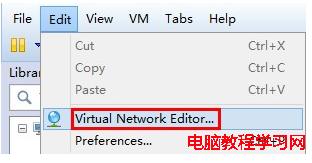
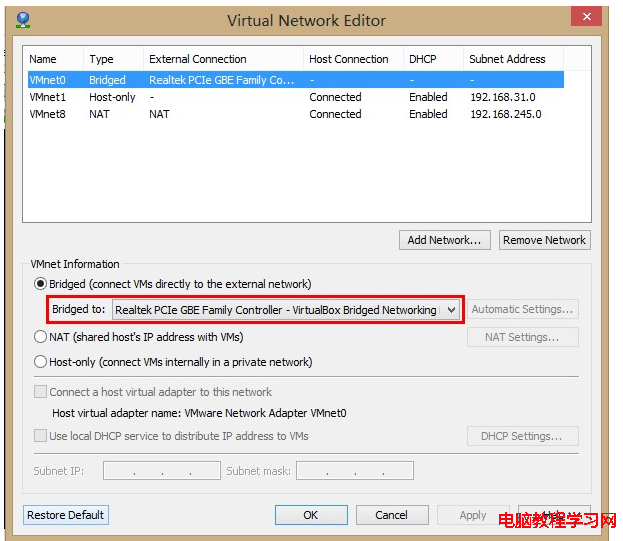
  2. 虛擬網路編輯器
  3. VMnet0 橋接設定
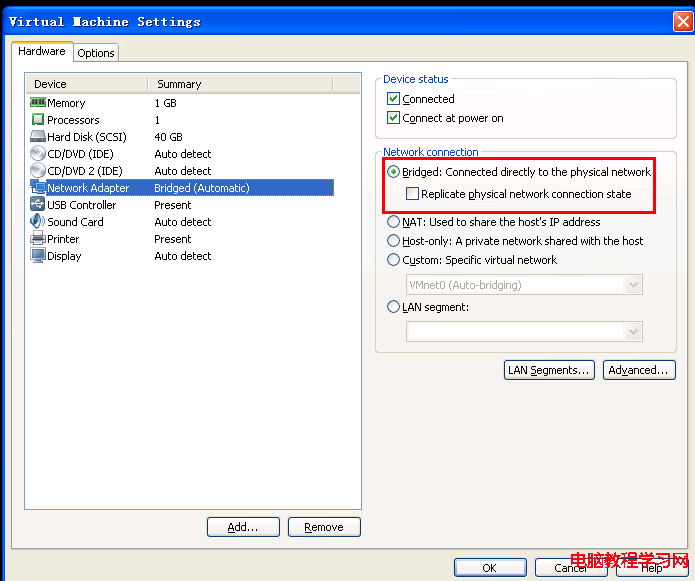
  4. 虛擬機設定: 網路介面卡選擇 橋接模式,勾選「複製實體網路連線狀態」
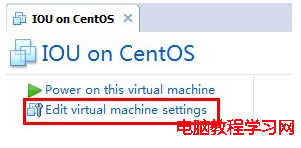
  5. 虛擬機設定
  6. 橋接模式選擇
  7. 記憶體建議 ≥ 1GB

CentOS 6.2 系統初始化

# 1. 修改網卡配置啟用開機自動啟動
vim /etc/sysconfig/network-scripts/ifcfg-eth0
# 關鍵參數:
ONBOOT=yes
BOOTPROTO=static  # 或 dhcp
IPADDR=192.168.1.100
NETMASK=255.255.255.0
GATEWAY=192.168.1.1
DNS1=8.8.8.8

# 2. 重啟網路
service network restart

# 3. 驗證連通性
ping 192.168.1.1
ping www.baidu.com
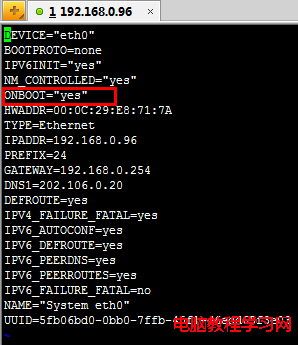
ifcfg-eth0 配置範例

安裝 IOU-web

  1. 關閉 SELinux 與防火牆
    # SELinux
    vim /etc/selinux/config
    SELINUX=disabled
    # 重啟生效
    
    # 防火牆
    service iptables stop
    chkconfig iptables off
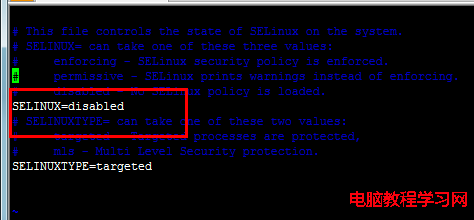
    SELinux 設定
  2. 新增 IOU-web YUM 源
    cat > /etc/yum.repos.d/iou-web.repo <<'EOF'
    [iou-web]
    name=IOU Web Interface
    baseurl=https://public.routereflector.com/iou-web/yum
    enabled=1
    gpgcheck=1
    gpgkey=https://public.routereflector.com/iou-web/yum/RPM-GPG-KEY-iou-web

    EOF
  3. 安裝套件
    yum install -y iou-web

    後續配置(資料庫初始化、Web 介面設定、Apache 整合)請參考官方文件。

常見問題

  • YUM 下載失敗: 檢查 DNS 解析、防火牆出站規則、官方源可用性
  • GPG 驗證失敗: 手動匯入金鑰 rpm --import https://public.routereflector.com/iou-web/yum/RPM-GPG-KEY-iou-web

  • 相依套件衝突: CentOS 6 已停止維護,建議升級至 CentOS 7/8 或 Rocky Linux/AlmaLinux
Copyright © Windows教程網 All Rights Reserved