GRUB 是主流 Linux 發行版預設的開機載入器。當 /boot/grub/grub.conf 遺失、關鍵參數錯誤或 MBR 引導碼受損時,系統會停在 grub> 提示符無法繼續啟動。本文提供兩套經實戰驗證的修復方案,助你快速恢復開機。

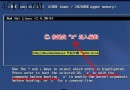
螢幕僅顯示 grub>,鍵盤可輸入指令,但無開機選單。
適用於 grub.conf 內容正確但 MBR 未損壞、或單純參數輸入錯誤的情況。
grub> root (hd0,0)                # 指定 /boot 所在分區 (第一顆硬碟第一分區)
grub> kernel /vmlinuz-2.6.18-128.el5 ro root=LABEL=/ rhgb quiet  # 載入核心,建議用 Tab 鍵補全檔名
grub> initrd /initrd-2.6.18-128.el5.img  # 載入初始虛擬檔案系統,同樣用 Tab 補全
grub> boot                         # 啟動核心
成功進入系統後,立即執行 grub-install /dev/sda 將 GRUB 重寫入 MBR,並檢查修正 /boot/grub/grub.conf。
適用於 MBR 損壞、grub.conf 遺失、檔案系統錯誤等嚴重情況。
linux rescue 進入救援模式。/mnt/sysimage,選 Continue。sh-3.1# Bash 環境。sh-3.1# chroot /mnt/sysimage # 切換至原系統根環境 sh-3.1# mount # 確認分區掛載狀態 sh-3.1# vi /boot/grub/grub.conf # 重建設定檔 (參考下方範本) sh-3.1# exit # 離開 chroot sh-3.1# exit # 離開救援環境,系統自動重啟
grub.conf 範本 (依實際分區調整):
default=0
timeout=5
splashimage=(hd0,0)/grub/splash.xpm.gz
title Red Hat Enterprise Linux (2.6.18-128.el5)
        root (hd0,0)
        kernel /vmlinuz-2.6.18-128.el5 ro root=LABEL=/ rhgb quiet
        initrd /initrd-2.6.18-128.el5.img
sh-3.1# chroot /mnt/sysimage
sh-3.1# grub-install /dev/hda         # 或 /dev/sda,視硬碟裝置而定
sh-3.1# exit
sh-3.1# exit
重啟後應恢復正常開機選單。
(hd0,0) 對應 /dev/sda1 或 /dev/hda1,請用 fdisk -l 確認。dd if=/dev/sda of=/backup/mbr.img bs=512 count=1 備份 MBR,關鍵時刻可秒級還原。Linux 部署 SSH 服務實戰:告別 Telnet 明文傳輸,構建加密遠程運維通道
Linux 源碼編譯安裝 Apache + MySQL + PHP5 及主流論壇部署全記錄
MySQL Socket 連線失敗:/var/lib/mysql/mysql.sock 與 /tmp/mysql.sock 路徑衝突完整解決方案
Linux ACL 權限控制實戰:突破傳統 rwx 限制的精細授權
RHEL/CentOS 7/8 VNC Server 完整部署指南:從安裝到防火牆、SELinux、多用戶隔離實戰
strace 系統調用跟蹤實戰:從 Segment Fault 到性能抖動的診斷全過程