红旗 Linux 6.0 SP1 如需手动指定屏幕分辨率(如 1024×768),可编辑 /etc/X11/xorg.conf 的 Screen 区段 Modes 行,随后在图形工具中应用并重启验证。
sudo vim /etc/X11/xorg.conf
# 找到 Section "Screen"
Section "Screen"
    Identifier "Screen0"
    Device     "Card0"
    Monitor    "Monitor0"
    DefaultDepth 24
    SubSection "Display"
        Depth   24
        Modes   "800x600"   # 修改此行
    EndSubSection
EndSection
将 Modes "800x600" 修改为所需分辨率,如:
Modes "1024x768" "800x600" "640x480"建议保留多个模式作为回退,首个为首选。
systemctl restart display-manager)。当前主流发行版(基于 Kernel Mode Setting)通常不需要 xorg.conf,分辨率由内核 DRM + XRandR 自动协商。若需强制指定,可创建 /etc/X11/xorg.conf.d/10-monitor.conf:
Section "Monitor"
    Identifier "Monitor0"
    Option "PreferredMode" "1024x768"
EndSection

Section "Screen"
    Identifier "Screen0"
    Monitor "Monitor0"
    DefaultDepth 24
    SubSection "Display"
        Modes "1024x768"
    EndSubSection
EndSection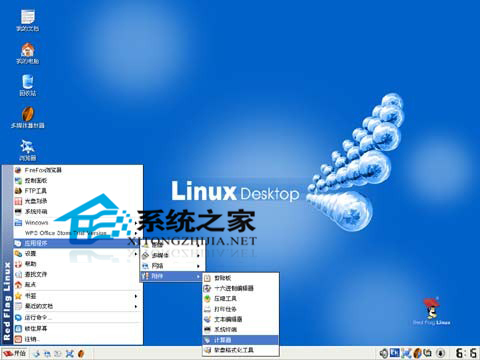
编辑 xorg.conf 的 Modes 行配合图形工具应用,即可在红旗 6.0 SP1 固定屏幕分辨率。现代系统建议优先使用 xrandr 或桌面环境自带显示设置。
Linux 虛擬機掛載 ISO 配置本地 YUM 源完整指南
locate 指令快速定位檔案:資料庫原理、updatedb 更新、參數詳解、與 find 差異比較
diff 指令檔案比較全攻略:正常/並排/統一格式、忽略空白/大小寫、目錄遞迴、產生補丁、版本控制基礎
Linux date 指令完全指南:顯示、格式化、設定時間、腳本應用與備份命名實戰
Linux 製作 Live USB 五大工具:UNetbootin、Ventoy、dd 指令、發行版內建、腳本法
Linux 磁碟空間清理實戰指南:find 尋找大檔/空檔/舊檔、rpm 套件管理、inode 監控、du 目錄分析完整工具箱
修復 Ubuntu apt-get 提示 Unable to locate package 錯誤只需執行 apt-get update